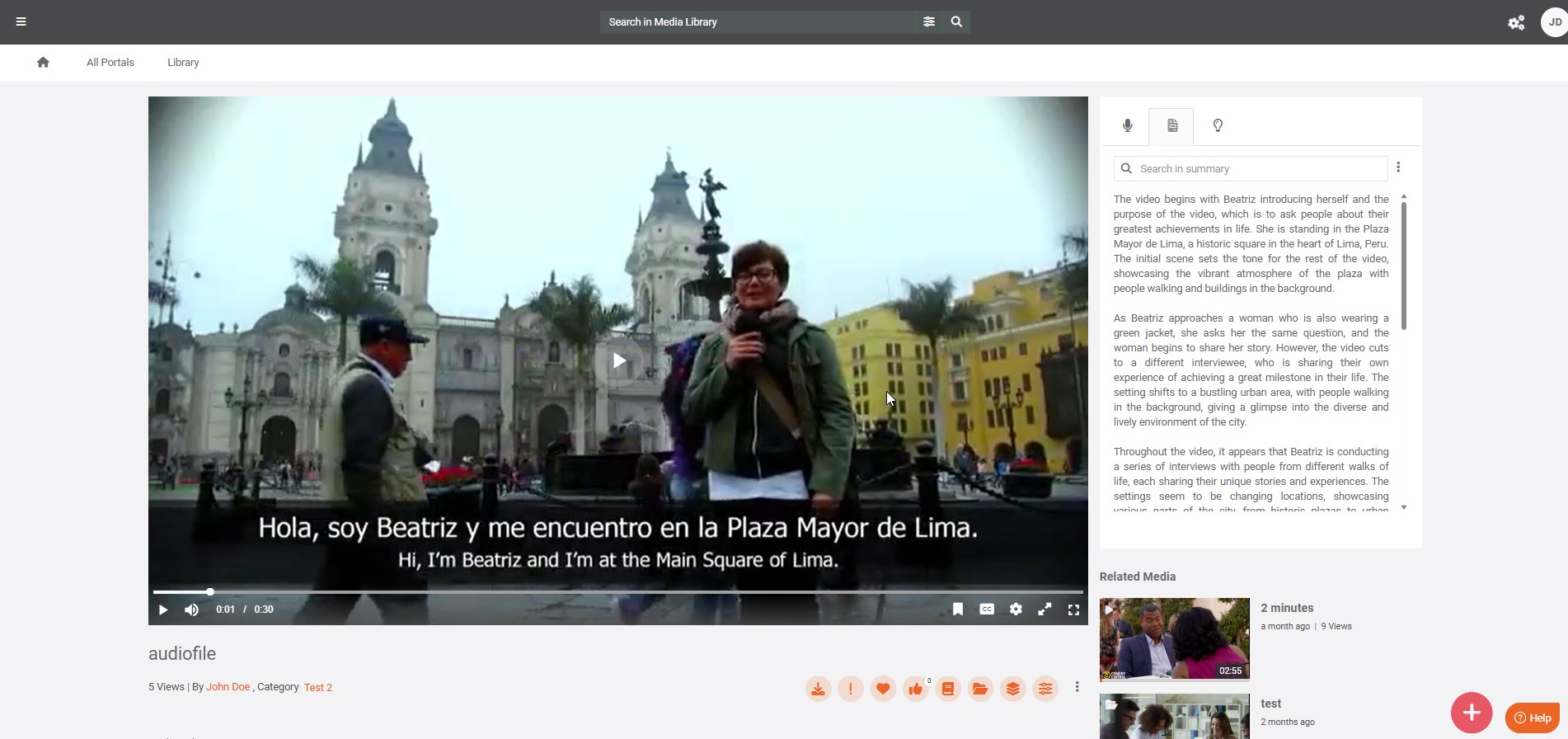
Configure Azure ARM App for Summarization Insight in VIDIZMO
You can generate Summarization Insights for your audio and video files uploaded to the VIDIZMO portal. VIDIZMO uses Azure AI capabilities to analyze both visual and spoken content, automatically creating concise summaries that help viewers quickly understand key points. To enable this feature, you must configure an Azure AI Foundry app in your Azure account.
This article provides step-by-step instructions to set up the Azure AI Foundry app required for Summarization Insights in VIDIZMO.
Prerequisites
- Users who belongs to a group where the App management permission is enabled can access this feature.
- You have an active Microsoft Azure subscription.
- The Azure Video Analyzer ARM app is already configured in your VIDIZMO portal. For setup guidance, see Configuring Azure Video Analyzer ARM in the VIDIZMO Portal.
Create an Azure AI Foundry App.
Follow these steps to create an Azure AI Foundry app required for Summarization Insights in VIDIZMO:
- Sign in to the Azure portal using your administrator credentials.
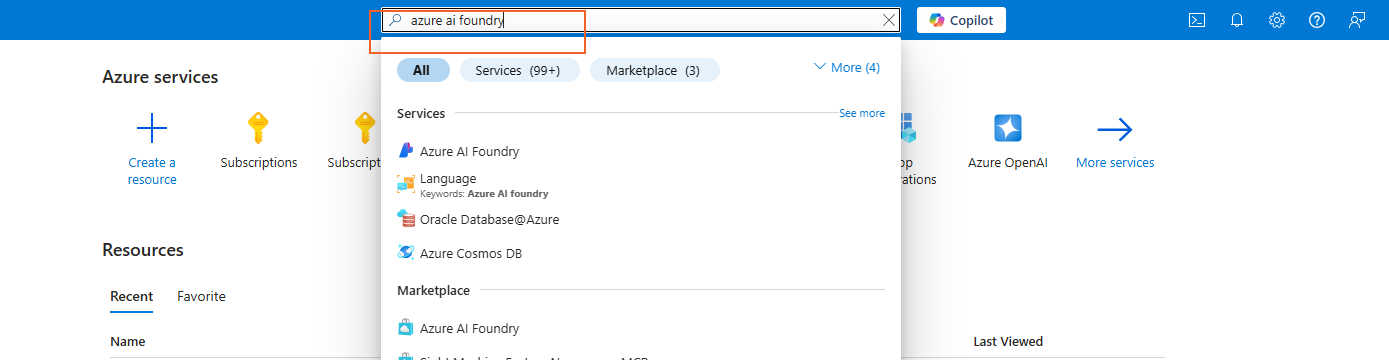
- In the search bar, type Azure AI Foundry, and select it from the results.
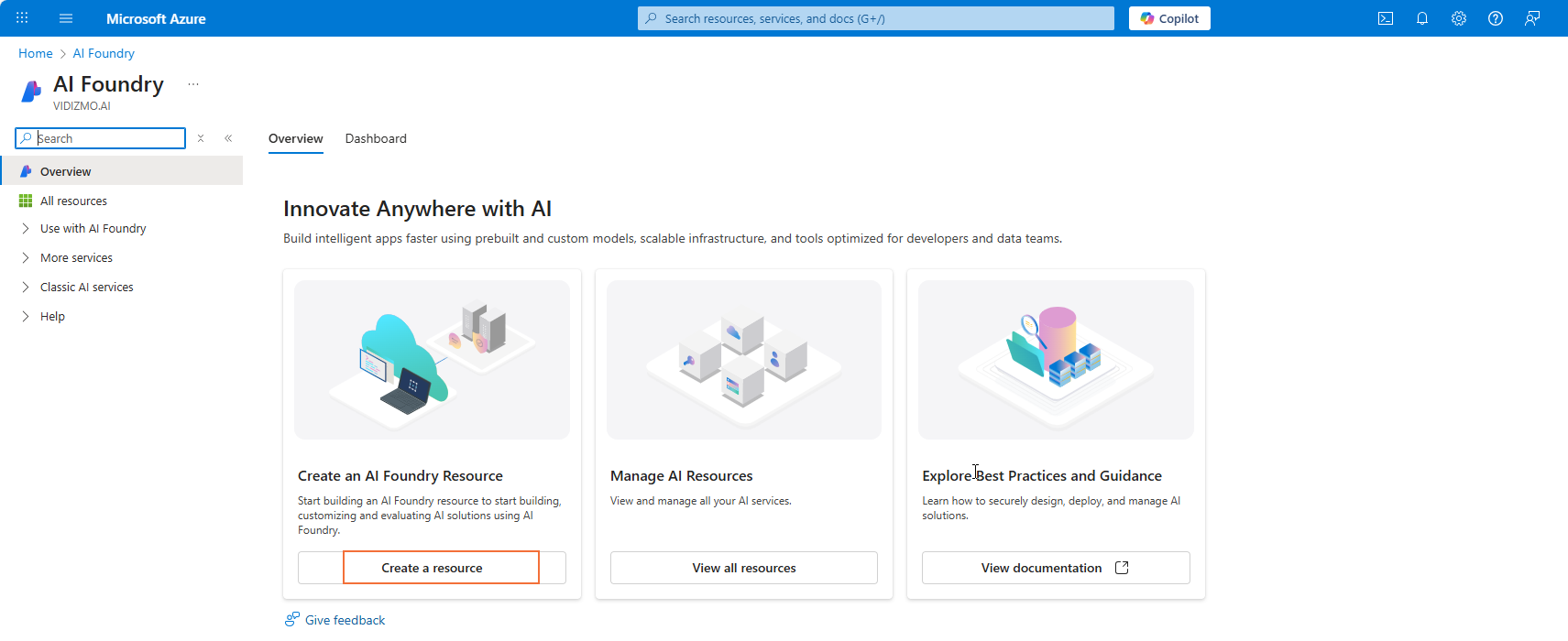
- Click Create a resource.
-
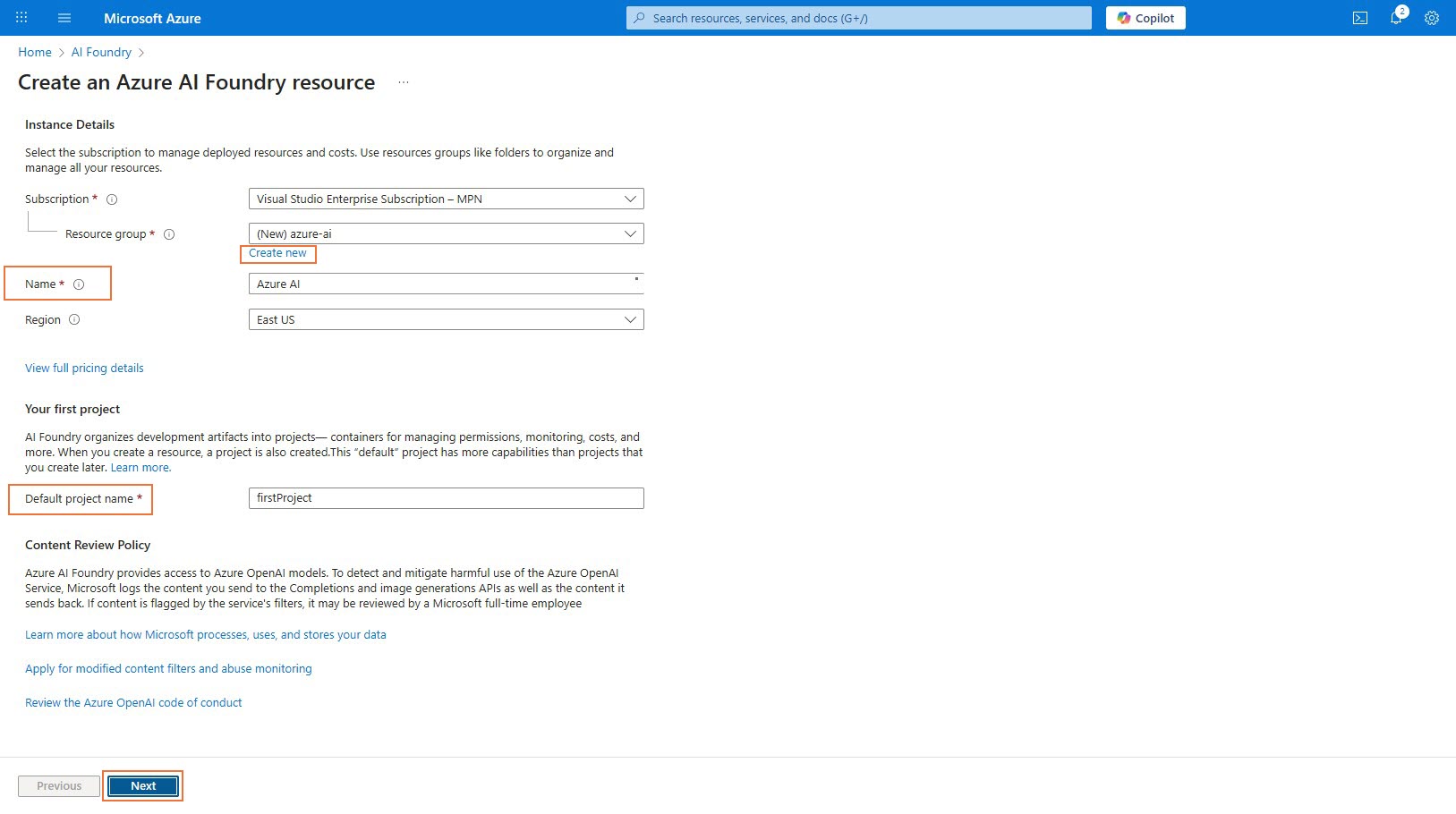
On the Azure AI Foundry resource setup page, create a new Resource Group:
- Click Create new beside the Resource group field.
- In the Name field, enter a unique name for your Foundry app.
-
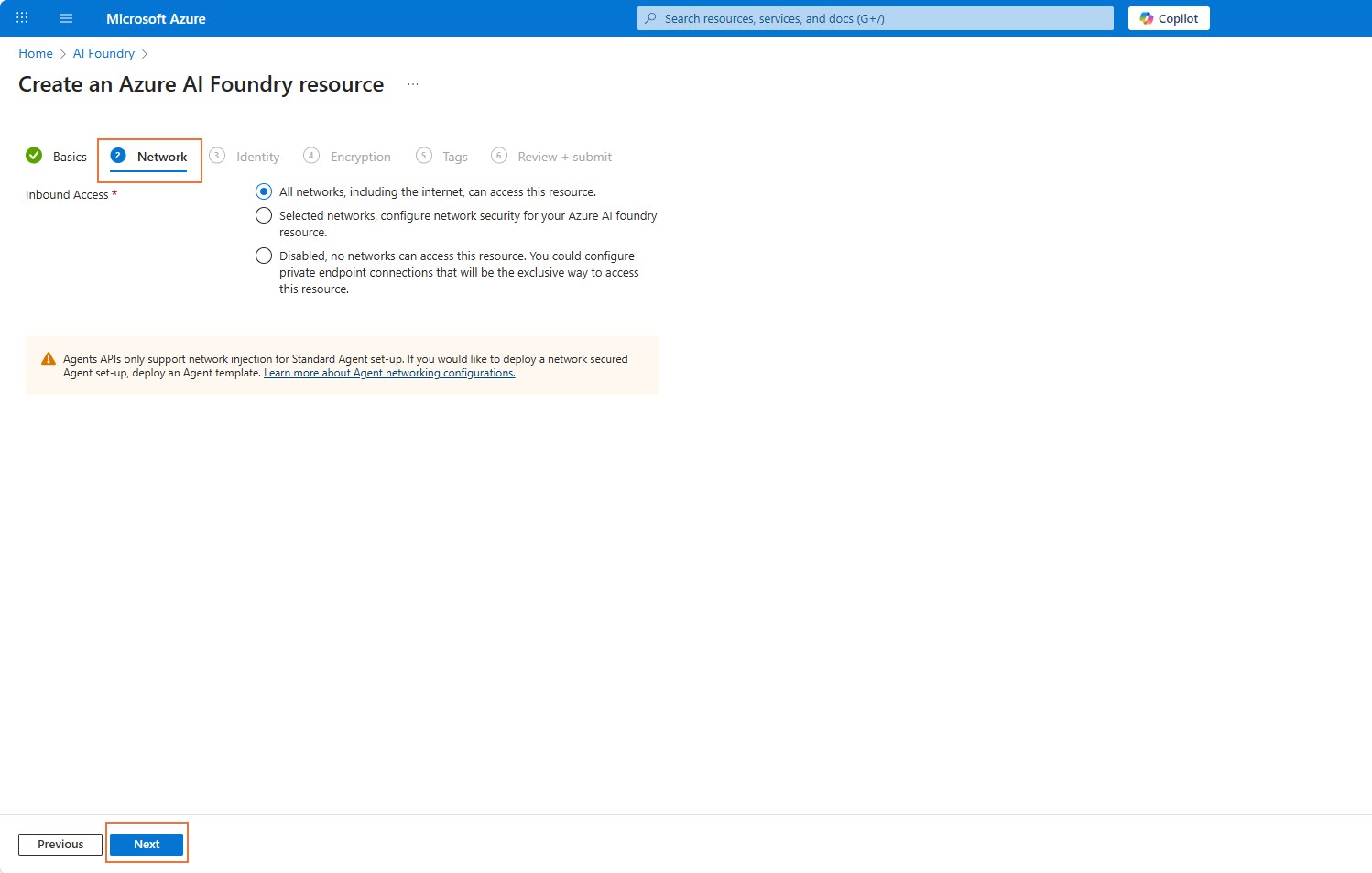
Click Next to proceed to the Networking tab.
- On the Networking tab, select your preferred network configuration, then click Next.
- On the Identity tab, select System assigned as the identity option.
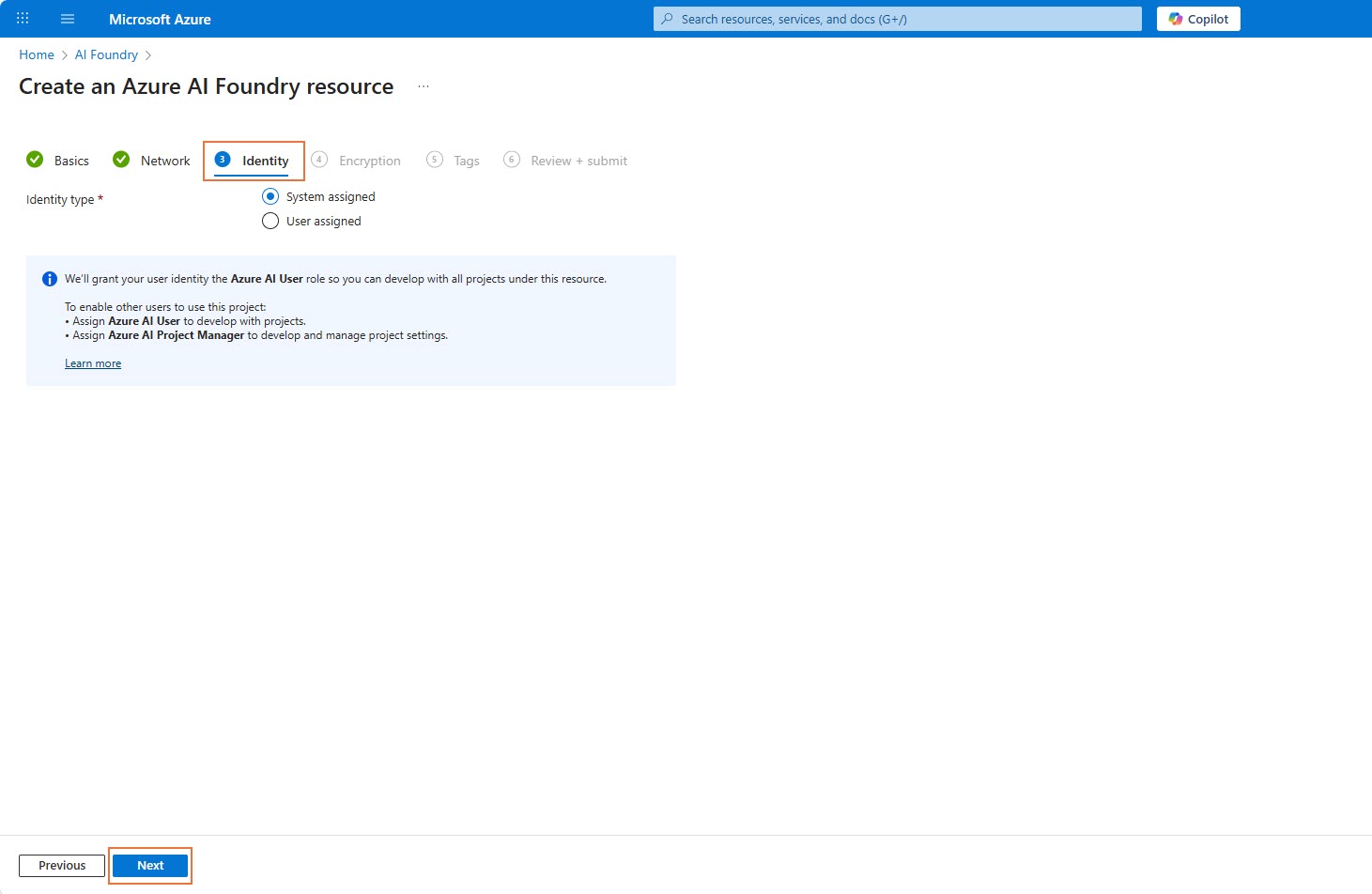
- Click Next to move to the Review + Submit tab.
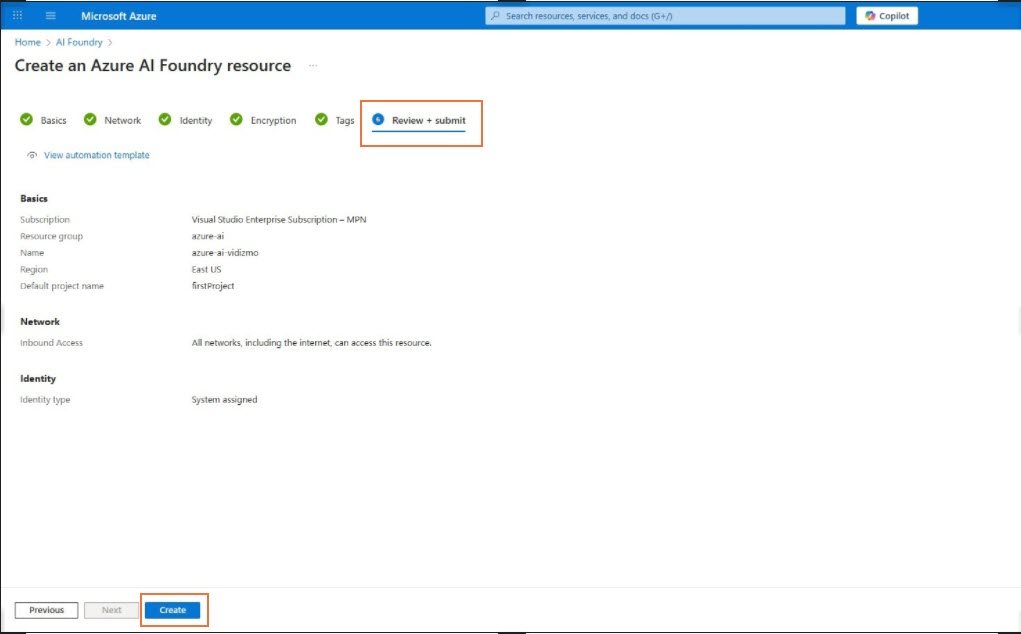
- Review your configuration settings, then click Create to deploy the app.
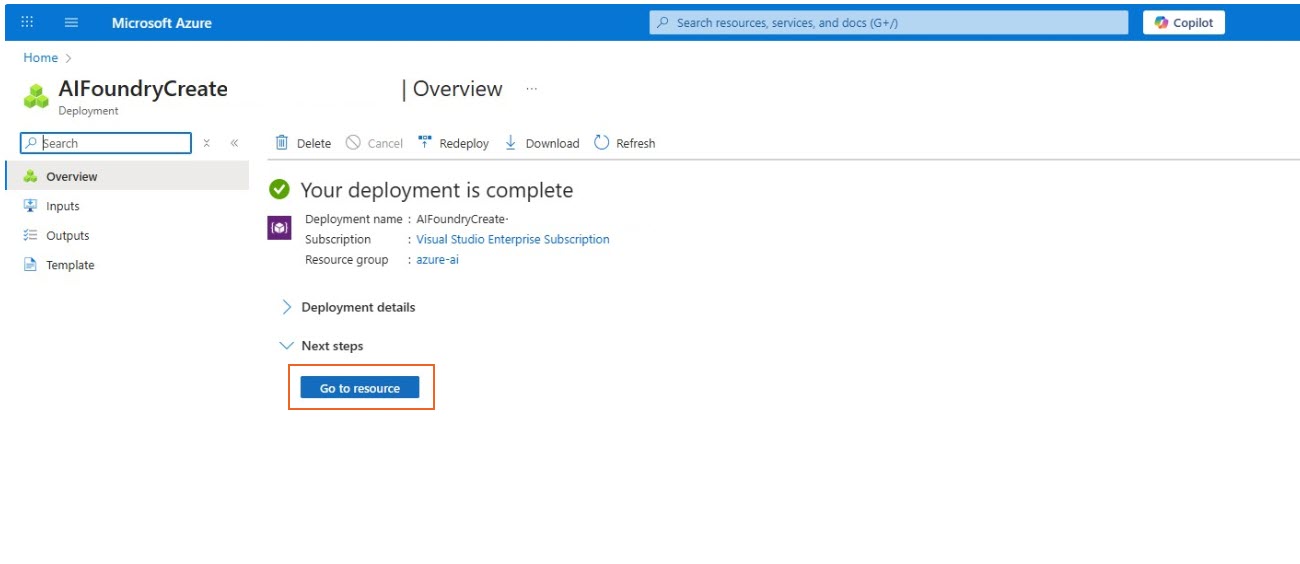
- Once complete, click Go to resource to open the newly created app.
- In the Overview tab, select Go to Azure AI Foundry portal.
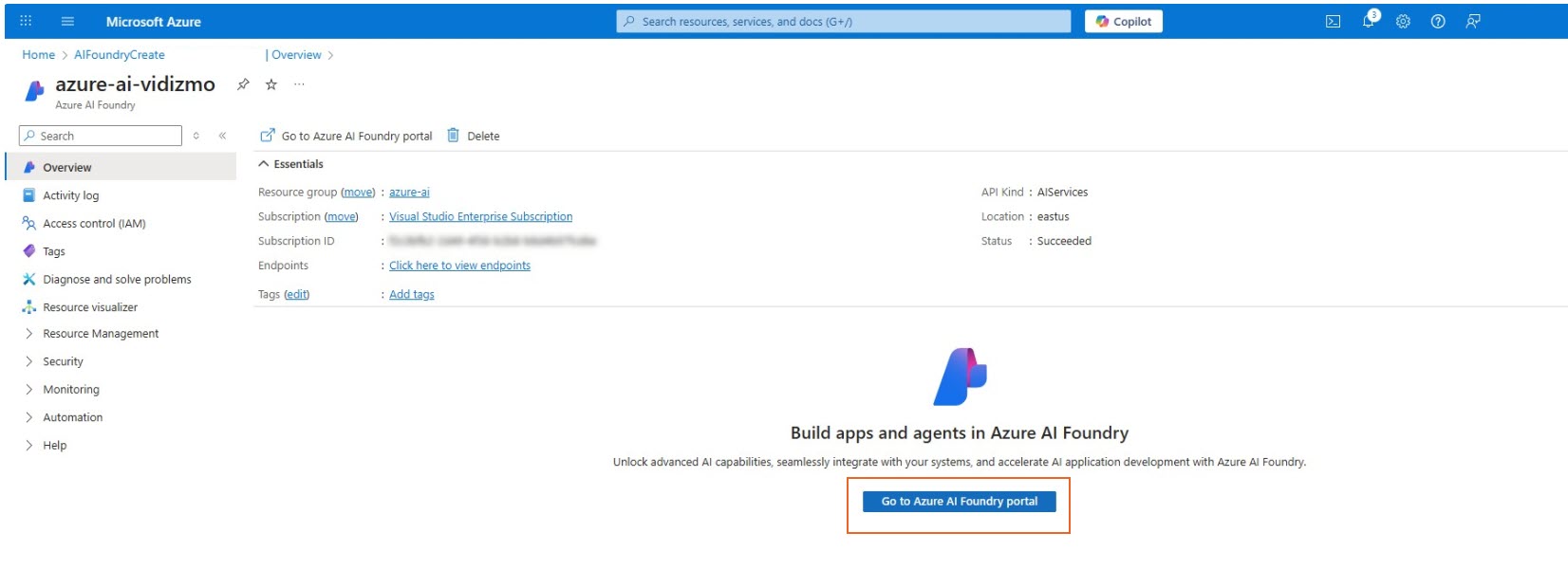
- Sign in when prompted.
- In the Azure AI Foundry app, open Model catalog from the left navigation menu.
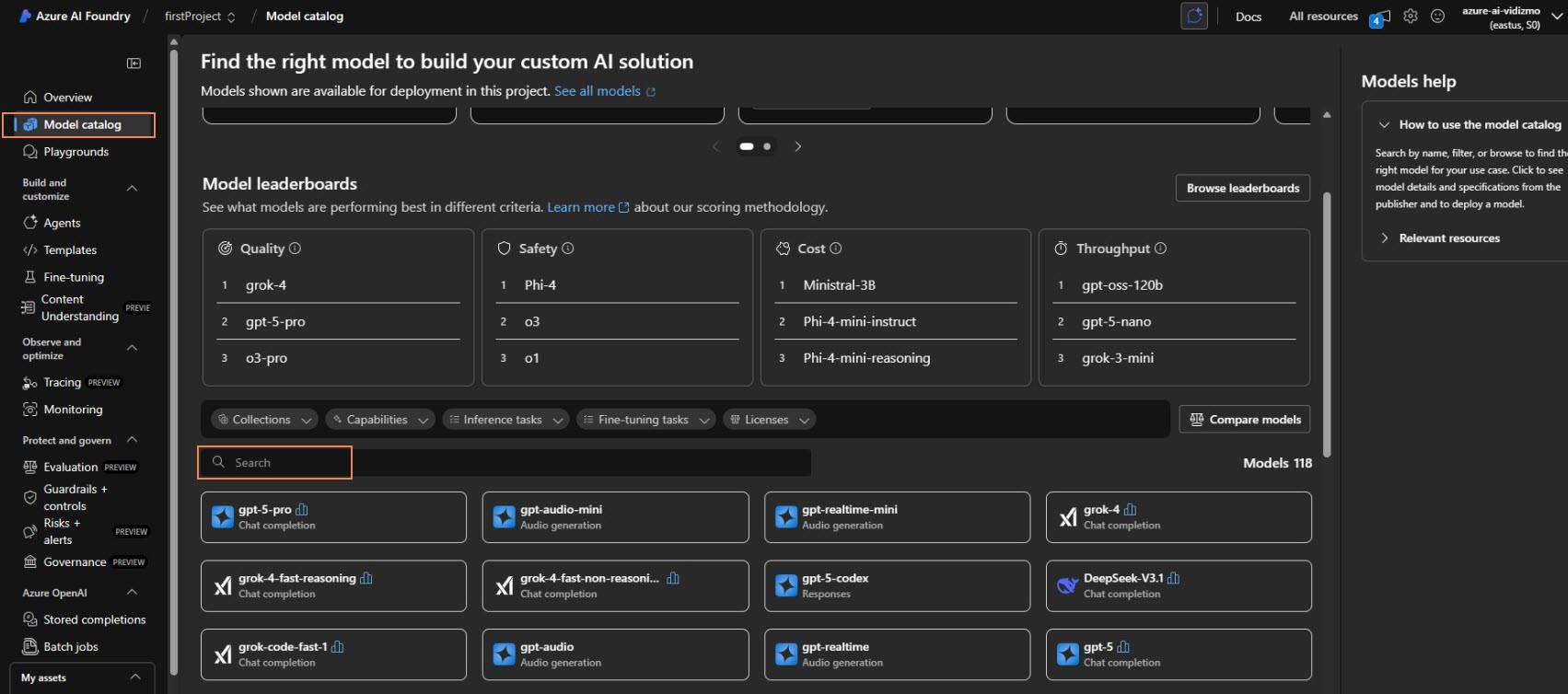
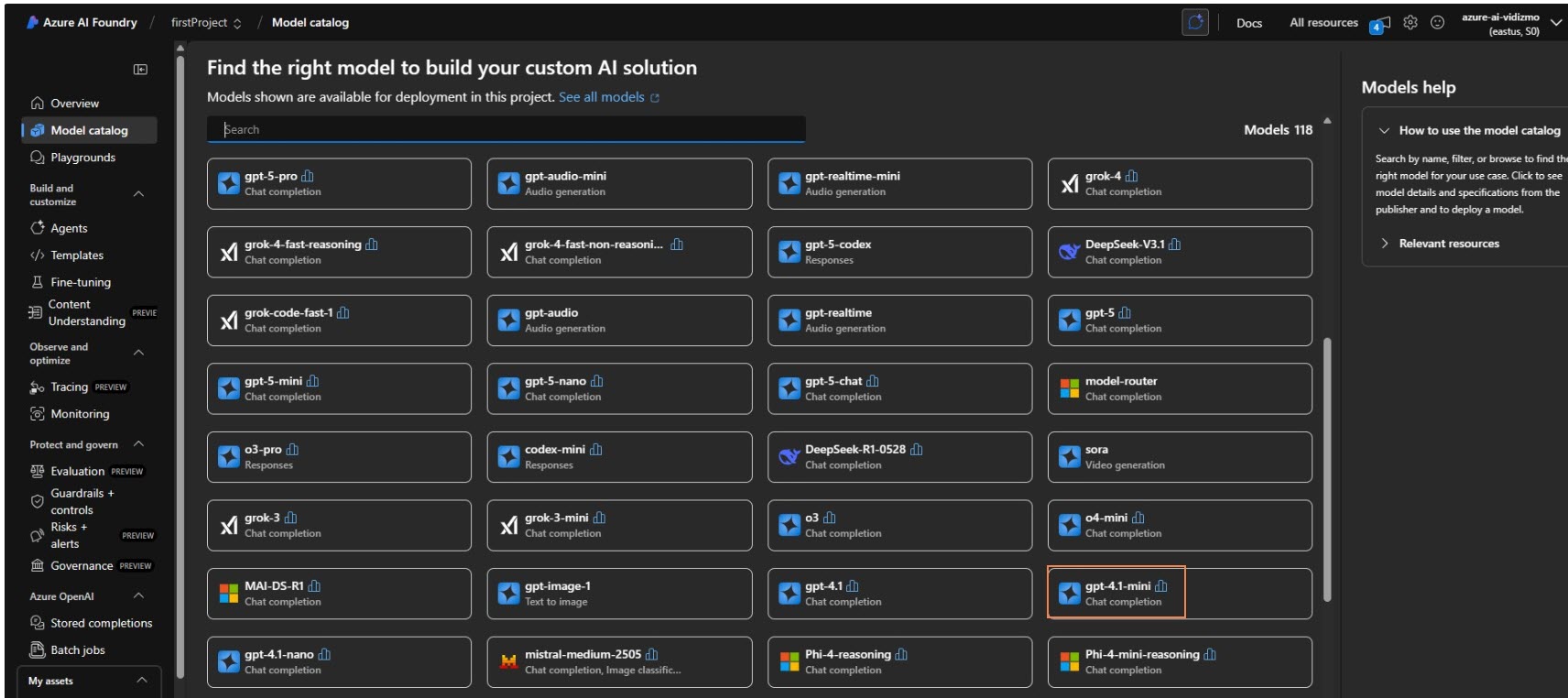
- In the search bar, type summarize.
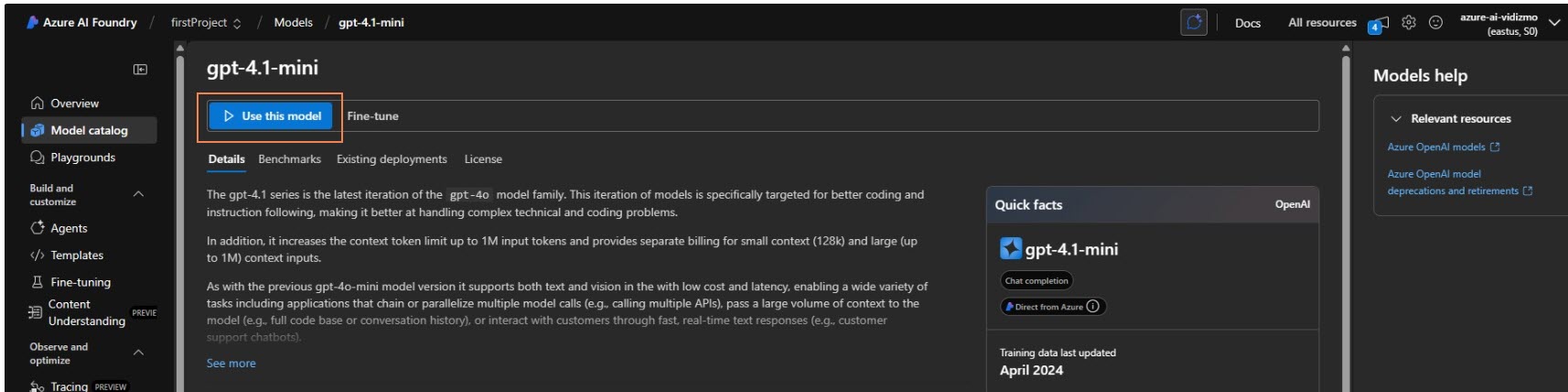
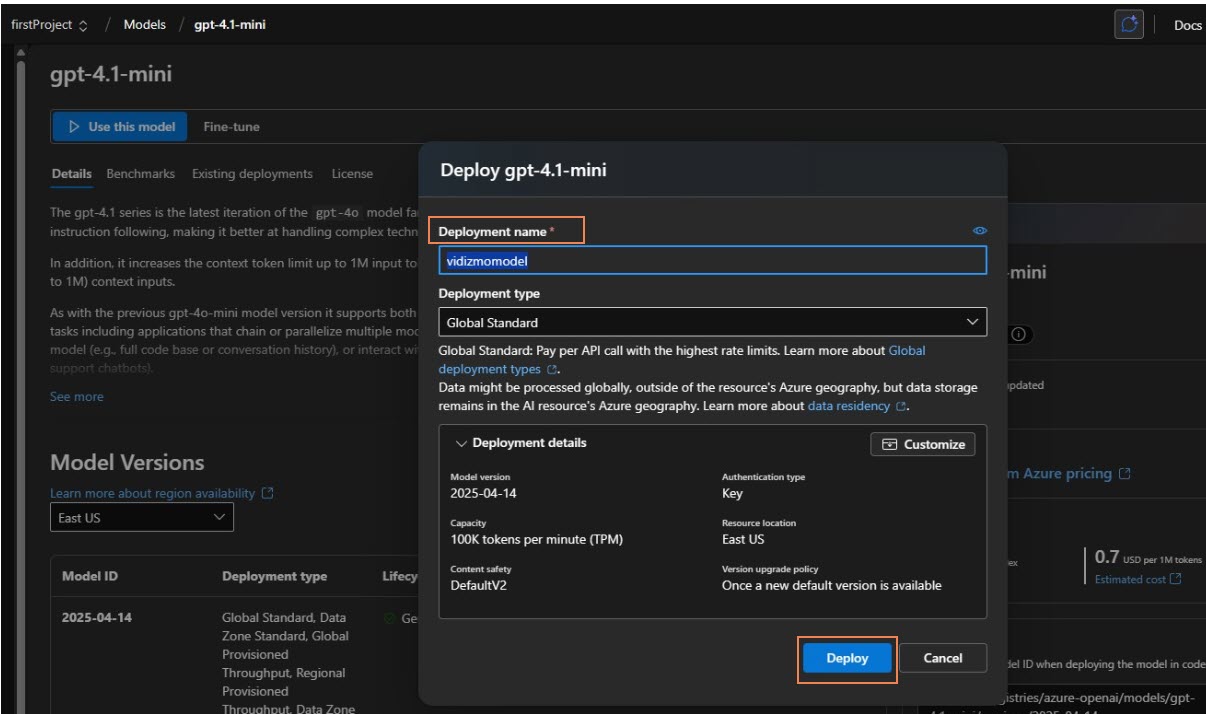
- From the search results, select gpt-4.1-mini.
- Choose Use this model.
- In the Deployment name (required) field, enter for e.g
vidizmomodel. - Click Deploy.
After successful deployment, return to your VIDIZMO portal.
Set up VIDIZMO ARM Indexer App.
After creating and deploying the model in Azure AI Foundry, complete the configuration in your VIDIZMO portal. Open the VIDIZMO ARM Indexer App in your portal.
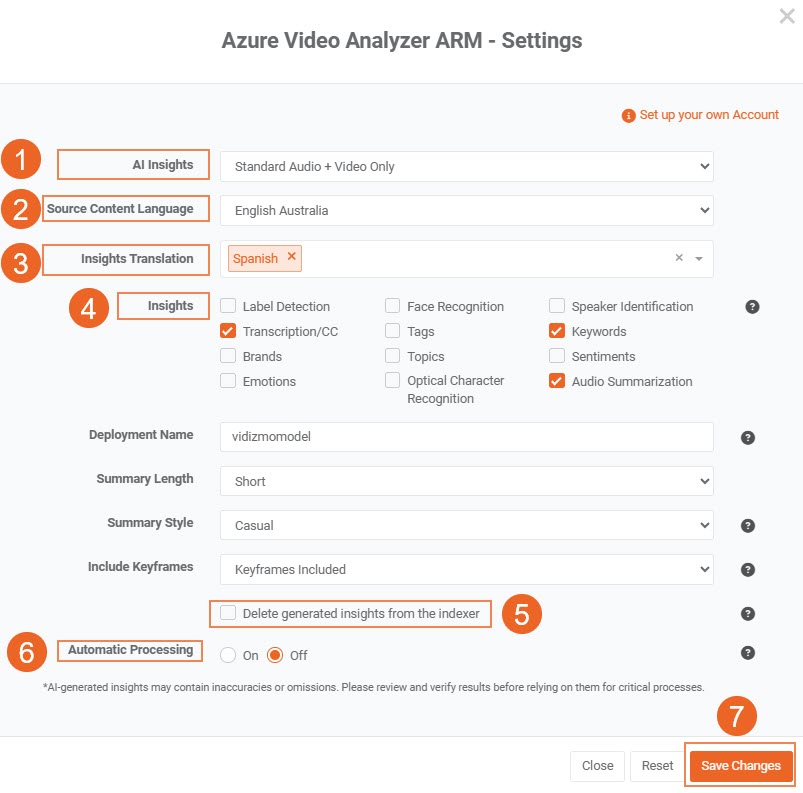
- Select AI Insights.
- Source Content Language: Select the primary language of your media content.
- Insights Translation: Choose whether to translate the transcribed insights into another language.
- In the Insights section, select Audio Summarization. The following fields will appear:
-
Deployment Name: Enter the deployment name you configured in the Azure AI Foundry model (for example, vidizmomodel).
-
Summary Length: Choose the preferred summary length: Short, Medium, or Long.
-
Summary Style: Set the tone of your summary: Formal, Neutral, or Casual.
-
Include Keyframes: Enable this option to include key frames for a detailed, frame-by-frame analysis during summary generation.
- Select 'Delete generated insights from the indexer' if desired.
- Automatic Processing: Select the appropriate option to turn automatic processing on or off. If the "On" setting is chosen, any uploaded evidence or media will undergo automatic processing without requiring manual intervention.
- Save Changes: Click the 'Save Changes' button to save the configurations.
Note: Ensure that you set up your own account in Azure Apps. For detailed instructions, refer to the article Configuring Azure Video Analyzer ARM in the VIDIZMO Portal.
After uploading audio or video files to the library, the system processes the media and generates summary results viewable during playback.